
How To View Facebook Private Profile Photo In Large Size

How To View Facebook Private Profile Photo In Large Size
Sometime you want to see clear image of someone on facebook who might not be your friend but his/her privacy setting stop you from doing this. In this tutorial i will teach you to view facebook private  or locked profile picture in large size with very simple trick.


How To View Facebook Locked Profile Picture ?

1. Open the facebook profile of person whose profile picture is locked or is set to private.
2. Right click on the profile picture and click on Copy Image Url as shown in image below.
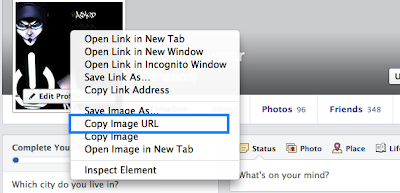
 Facebook Private Profile Photo

3. Open that image in new tab by  right clicking and selecting Paste (CTRL + V)
4. Now change the value of image size highlighted below which might be s160x160 to s720x720 (If its not clear try (s320x320)
 Facebook Private Profile Photo
5. The image will enlarge in size. This trick does not always work.

Popular posts from this blog

Hide Drives for security & Privacy

Hide Drives for security & Privacy   My dear friends....!!! I am YASH  , and I again back for improving your computer skill. Today i am going to telling one more interesting tip that is "HIDE DRIVES FOR SECURITY AND PRIVACY", This is a great trick you can play on your friends to disable the display of local or networked drives when you click My Computer. 1.Go to start->run.Type regedit. Now go to: HKEY_CURRENT_USER\Software\Microsoft\Windows\CurrentVersion\Policies\Explorer Now in the right pane Create a new DWORD item and name it NoDrives (it is case sensitive). Now modify it's value and set it to 3FFFFFF (Hexadecimal) . Now restart your computer. So, now when you click on My Computer, no drives will be shown (all gone...). To enable display of drives in My Computer, simply delete this DWORD item that you created. Again restart your computer. You can now see all the drives again. If you have any oth...

More than 100 Keyboard Shortcuts must read

More than 100 Keyboard Shortcuts must read  SHARE IT.......   BY YASH  Keyboard Shorcuts (Microsoft Windows)  1. CTRL+C (Copy)  2. CTRL+X (Cut)  ...... 3. CTRL+V (Paste)  4. CTRL+Z (Undo)  5. DELETE (Delete)  6. SHIFT+DELETE (Delete the selected item permanently without placing the item in the Recycle Bin)  7. CTRL while dragging an item (Copy the selected item)  8. CTRL+SHIFT while dragging an item (Create a shortcut to the selected item)  9. F2 key (Rename the selected item)  10. CTRL+RIGHT ARROW (Move the insertion point to the beginning of the next word)  11. CTRL+LEFT ARROW (Move the insertion point to the beginning of the previous word)  12. CTRL+DOWN ARROW (Move the insertion point to the beginning of the next paragraph)  13. CTRL+UP ARROW (Move the insertion point to the beginning of the previous paragraph)  14. CTRL+SHIFT with any of the arrow keys (Highli...

Watch 18+ Videos On Youtube Without Signing In

Watch 18+ Videos On Youtube Without Signing In Sometime its annoying when youtube ask you to sign in for your age verification to watch 18+ videos. So i will make it easy for you by showing you a simple youtube trick to watch adult or 18+ youtube videos without signing In. This trick is 100% working as of 2013. So lets get started. How To Watch 18+ Youtube Videos Without Logging In ? 1. First get the Url of video you want to watch. As shown below. http://www.youtube.com/watch?v= 4Xkh6j7RMqk   2. Then cop y the Video Id. For above link video Id is 4Xkh6j7RMqk 3. Now paste the Video Id in the link given below. http://www.youtube.com/v/ VideoId ?fs=1 Replace VideoId with the Id you copied in Step 2 4. Now the url will become as shown below. http://www.youtube.com/v/ 4Xkh6j7RMqk ?fs=1 5. Done.